
From invite to merged PR
A step-by-step walkthrough for a developer: accept an invite, find your repos, make a task from a ticket and start a session on it.
This walkthrough follows Omar, a developer who joins Northwind. He accepts the invitation, lets the desktop app find his clones, turns a ticket into a task on the board and starts a session on that task. The session is where the work toward a merged pull request happens.
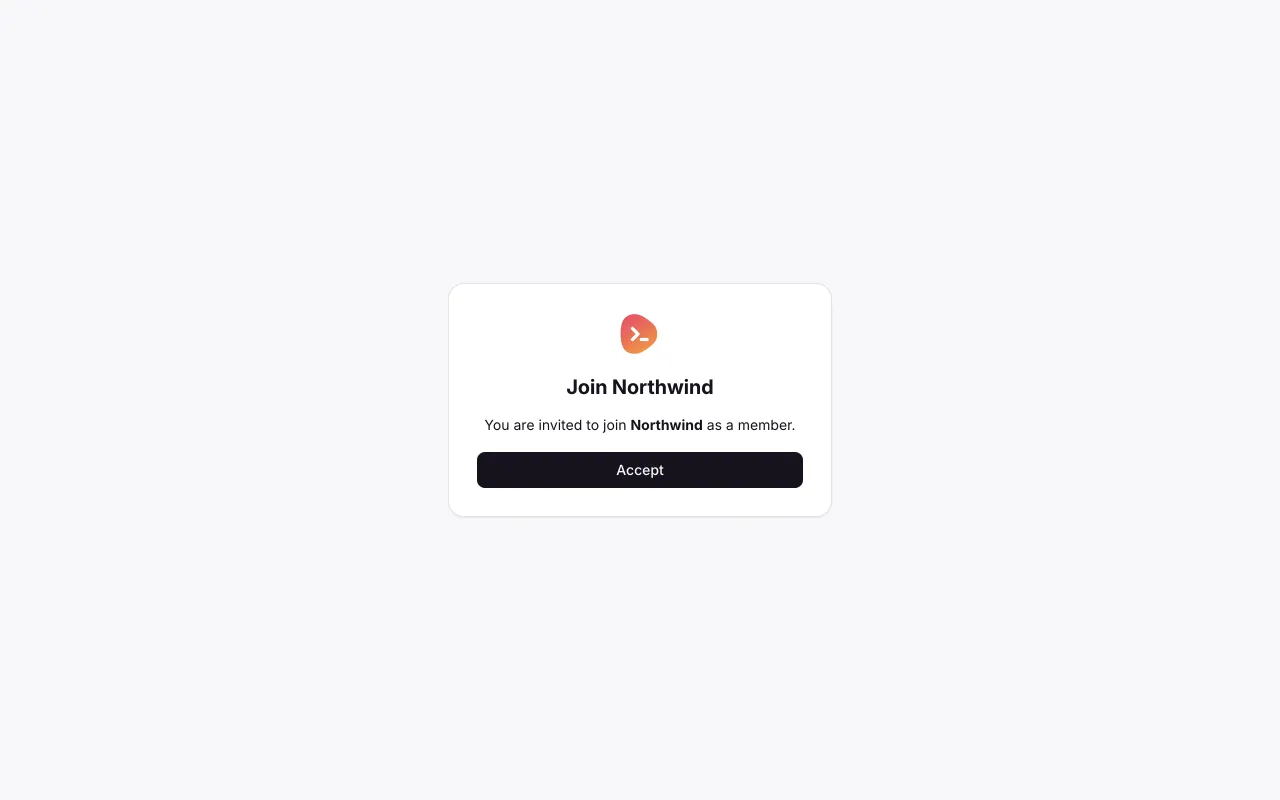
Omar accepts the invitation. 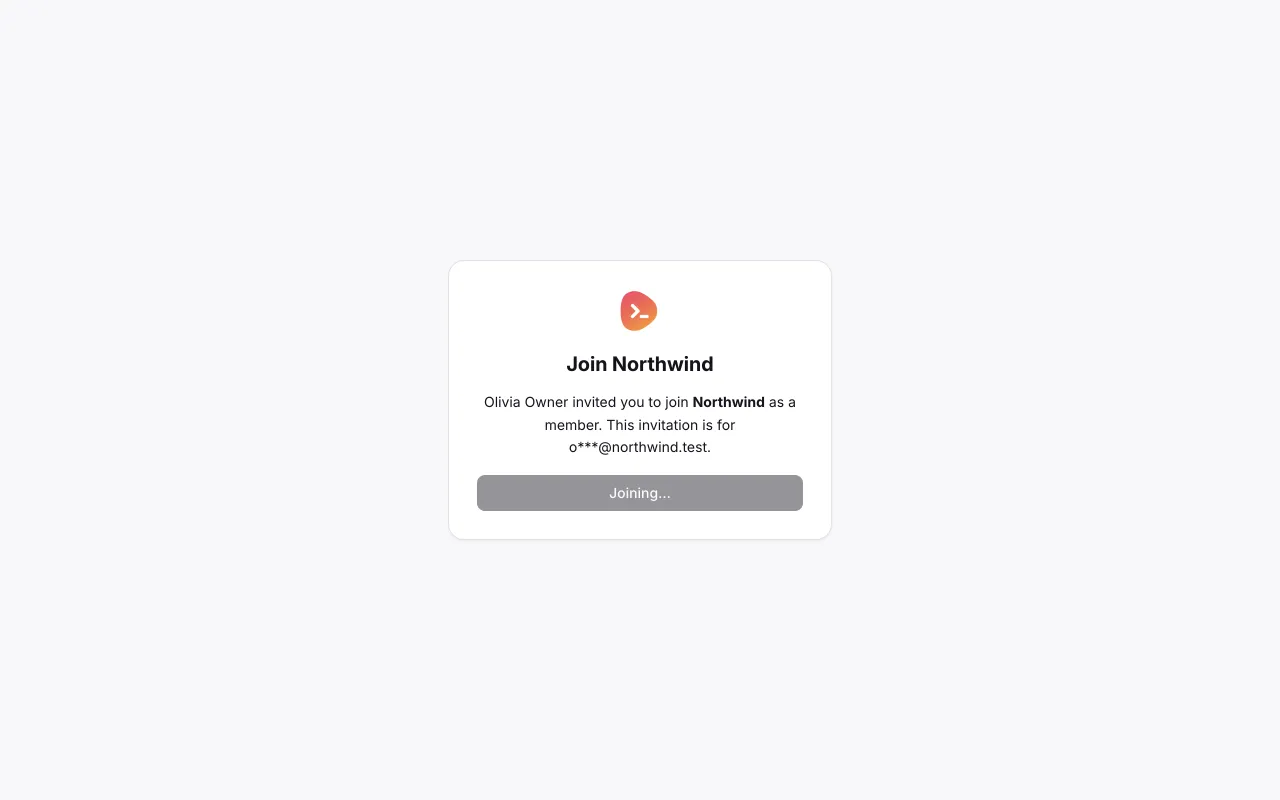
Off-app navigation: Omar installs the desktop app, signs in from Home’s space switcher, approves its device code in the system browser, then opens Repos and chooses Find on this machine. The Installer chapter follows each action. 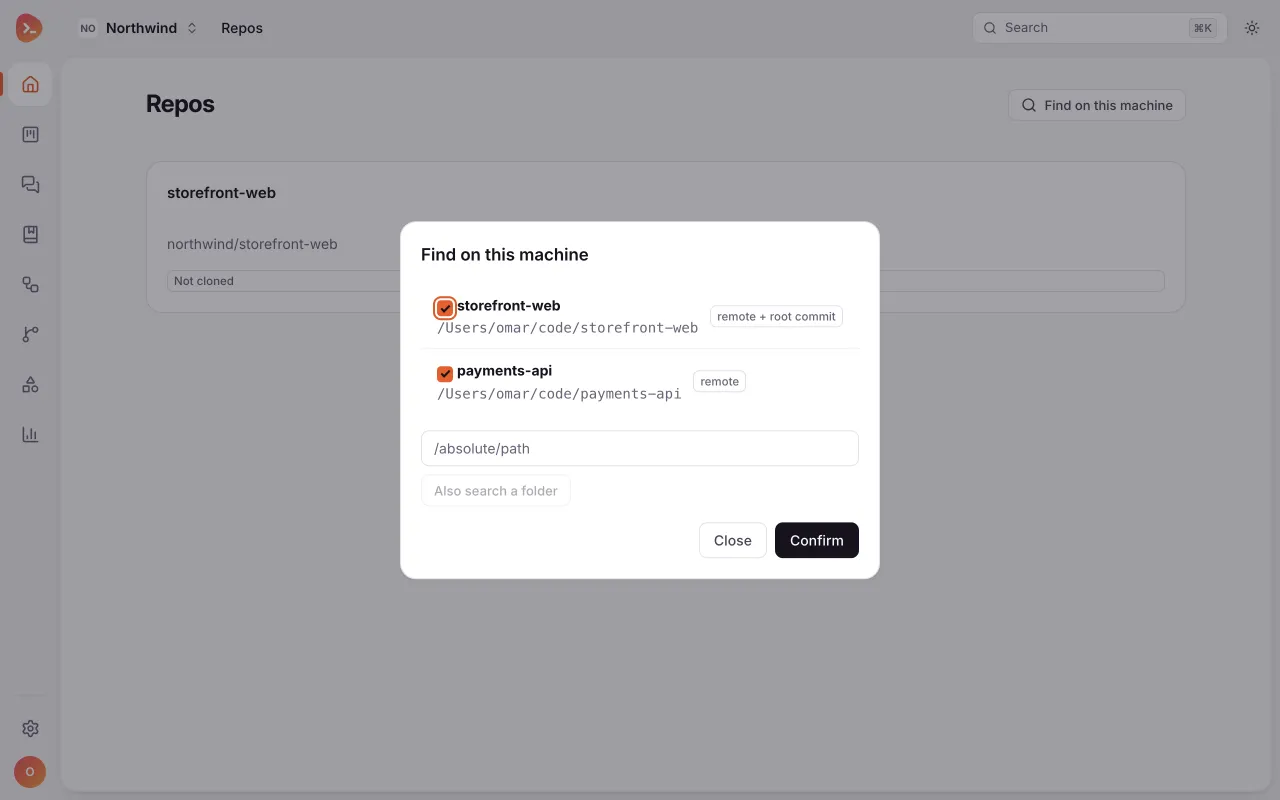
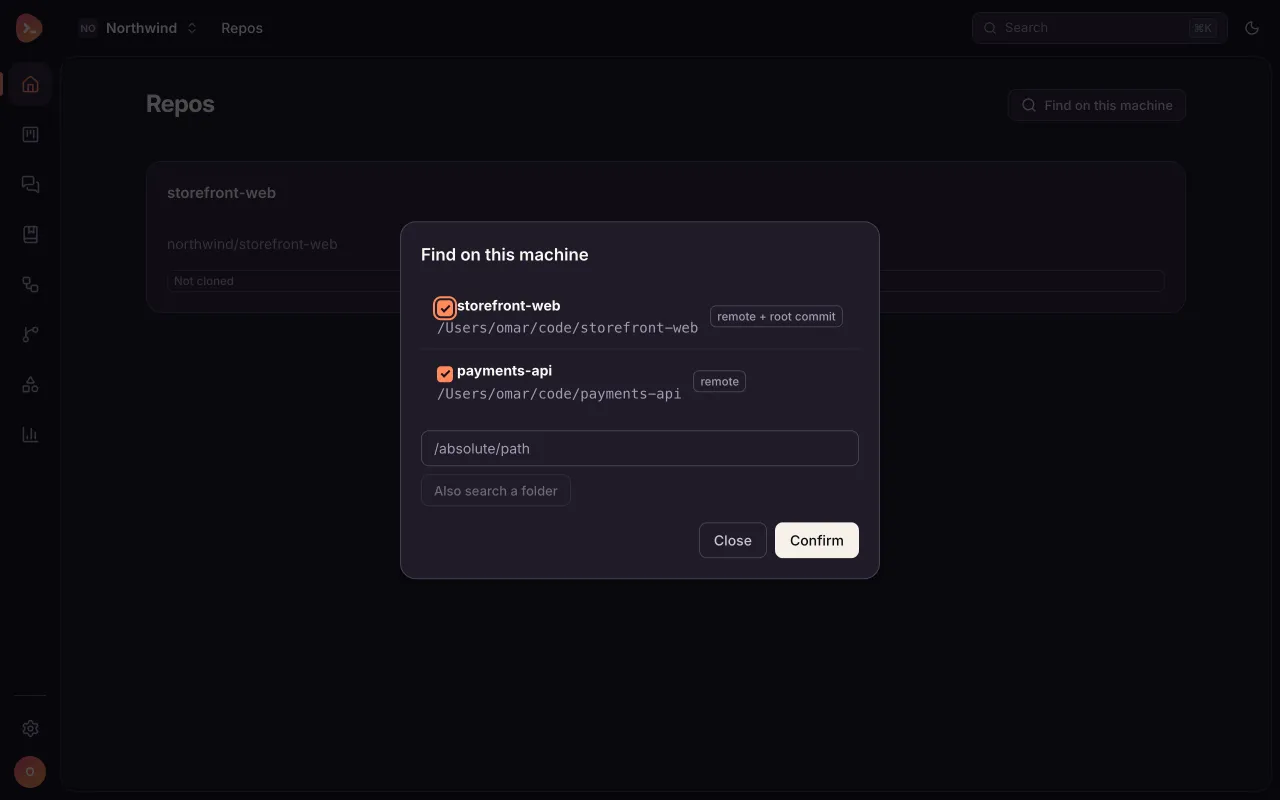
Omar explicitly searched with Find on this machine. Confirm the matched clones; no repository binds before confirmation. 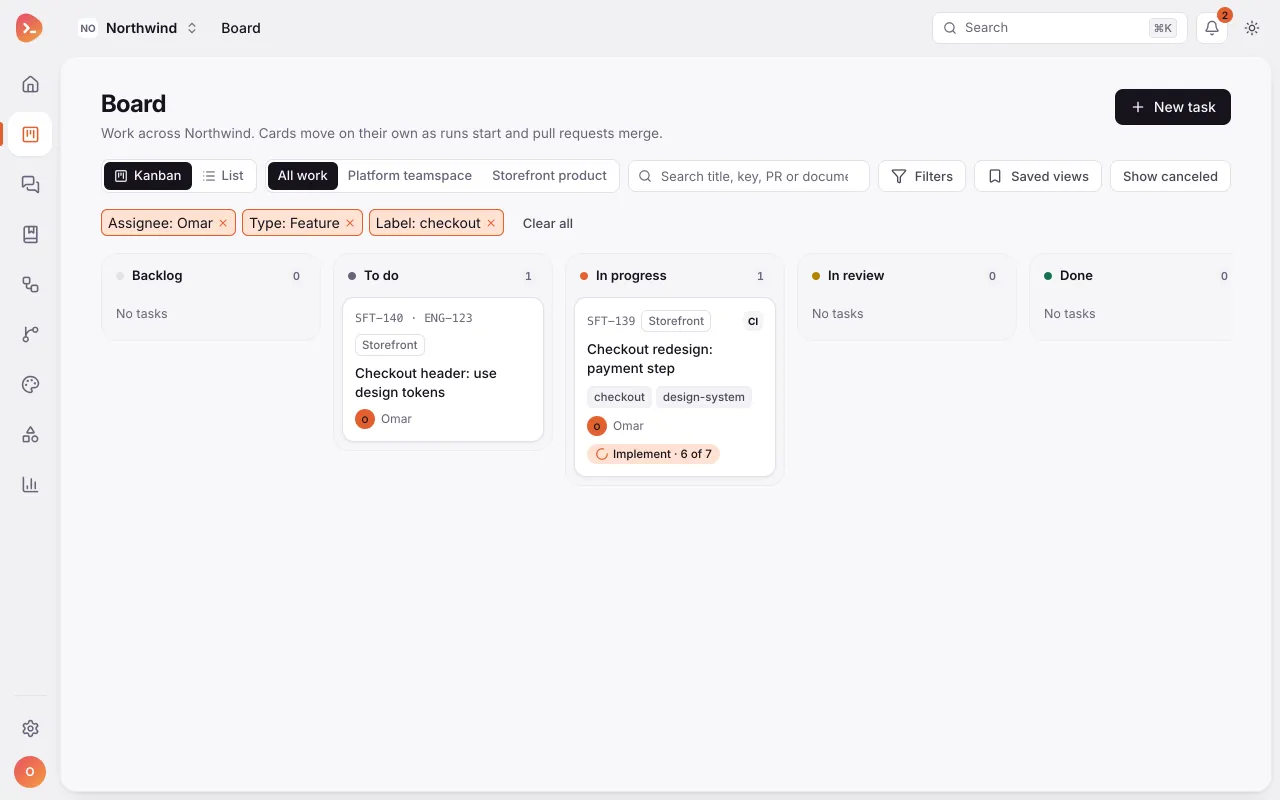
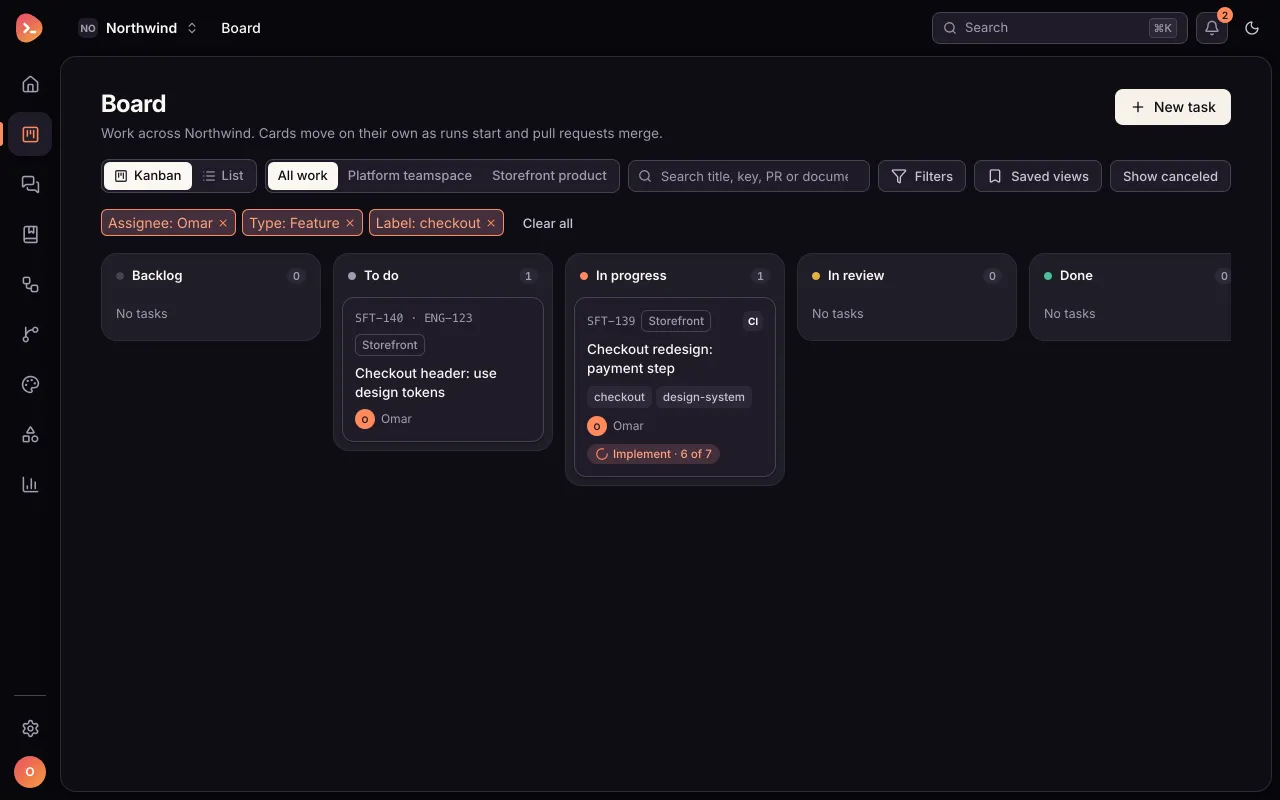
Review Assigned to Omar, then make a task from a ticket. 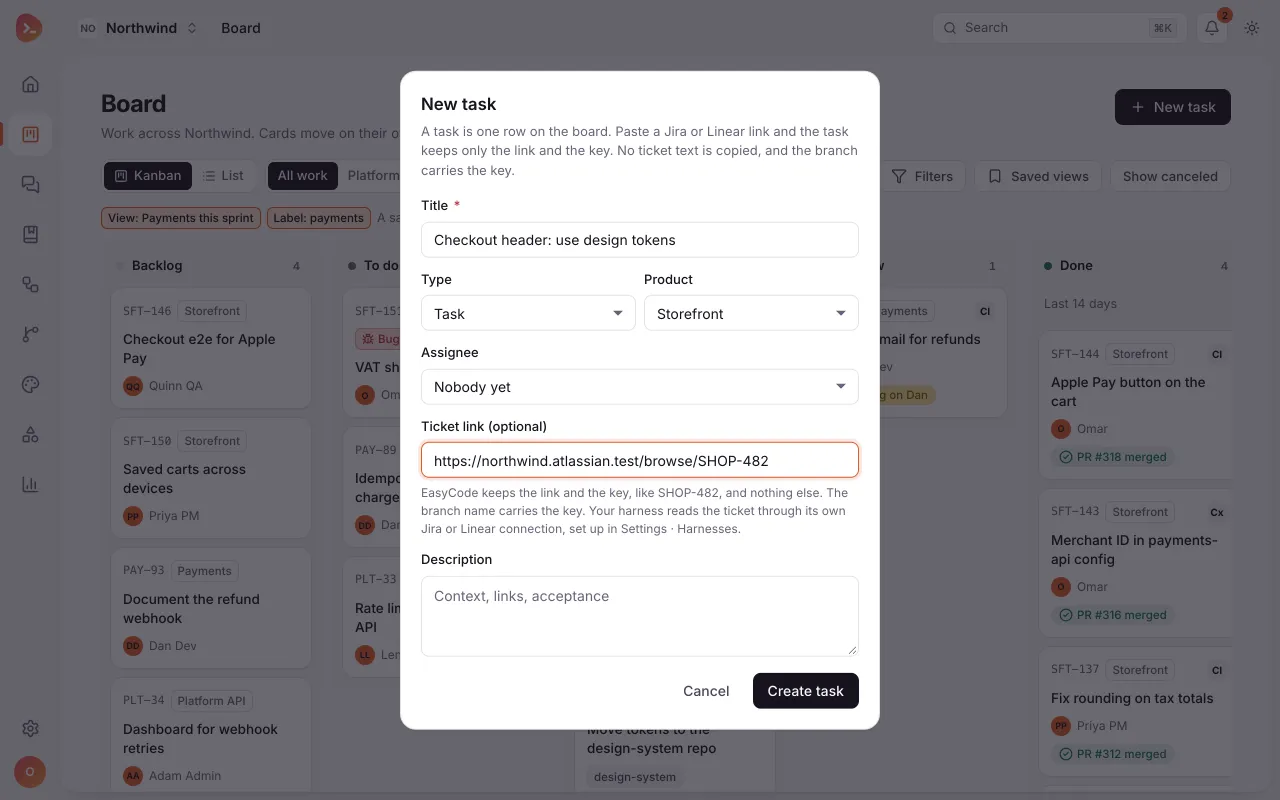
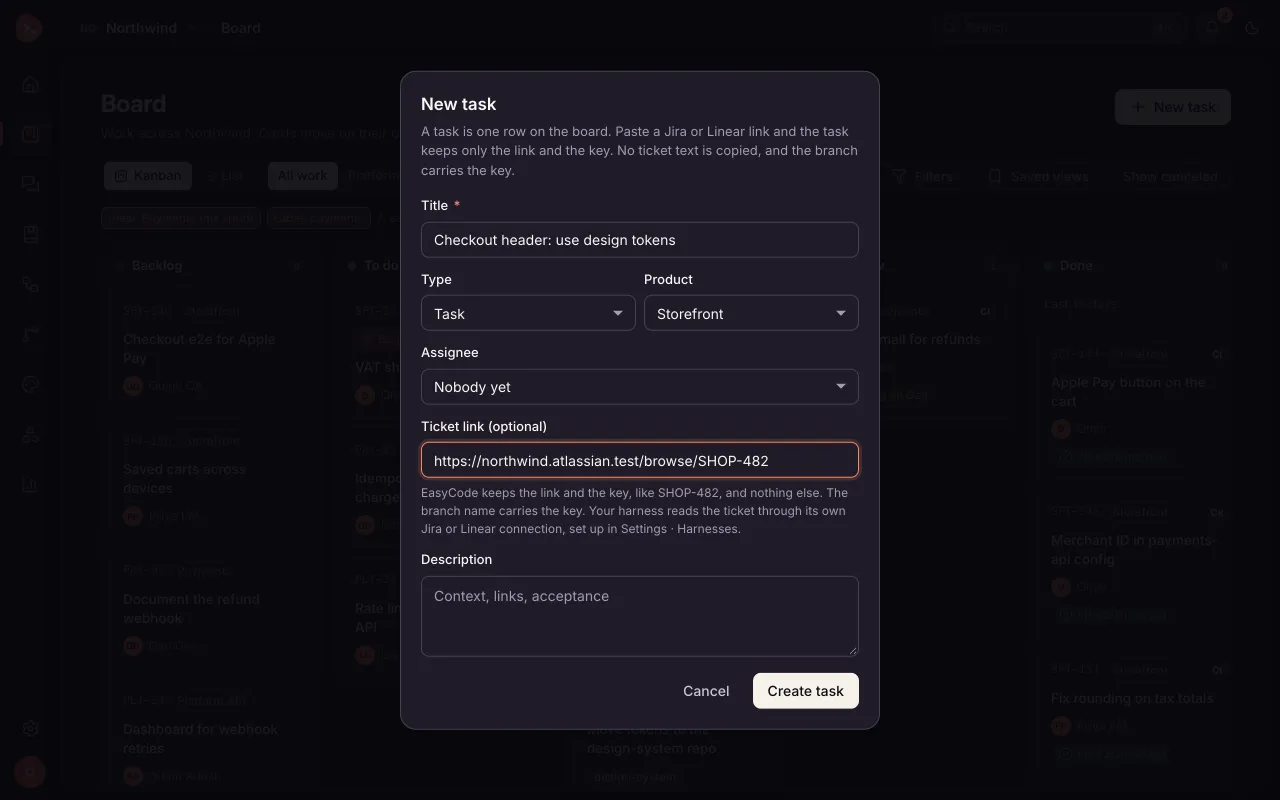
He pastes the ticket's link. The task keeps only the link and the key, never the ticket text, and the branch will carry the key. 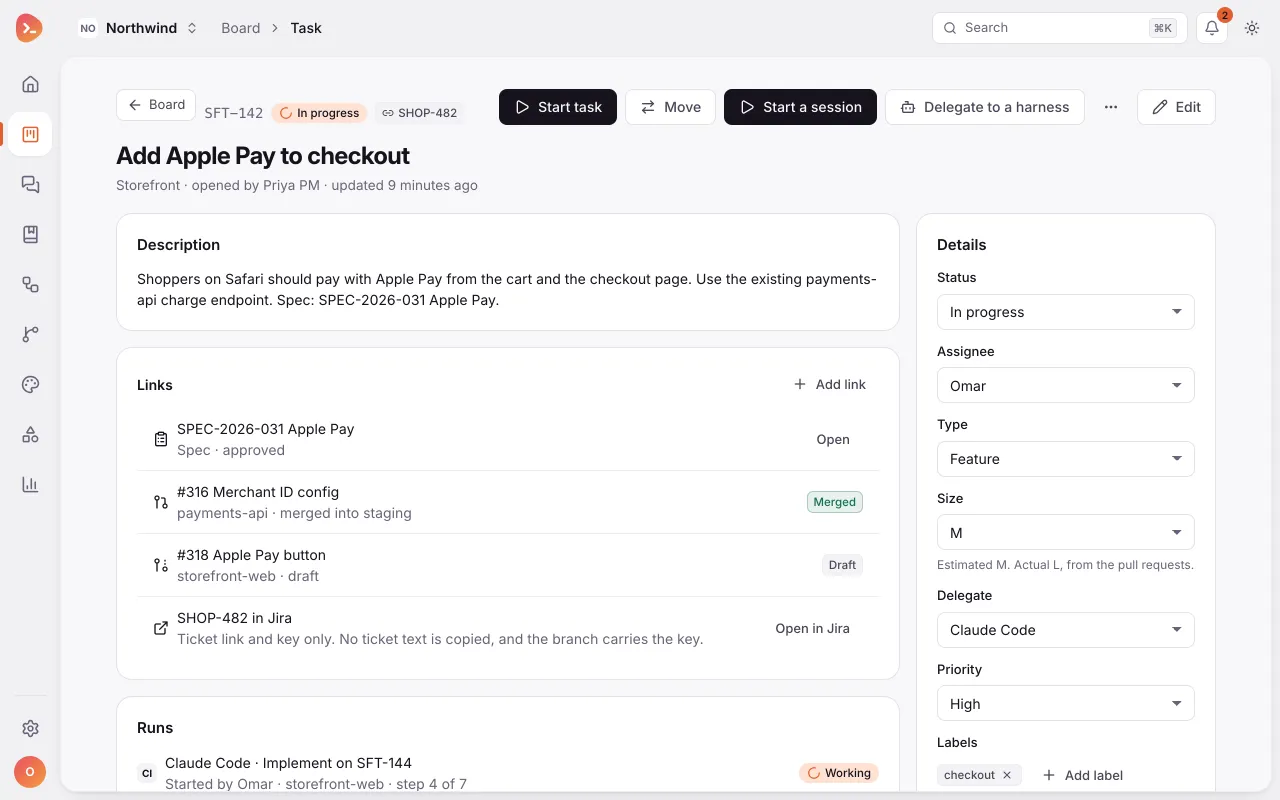
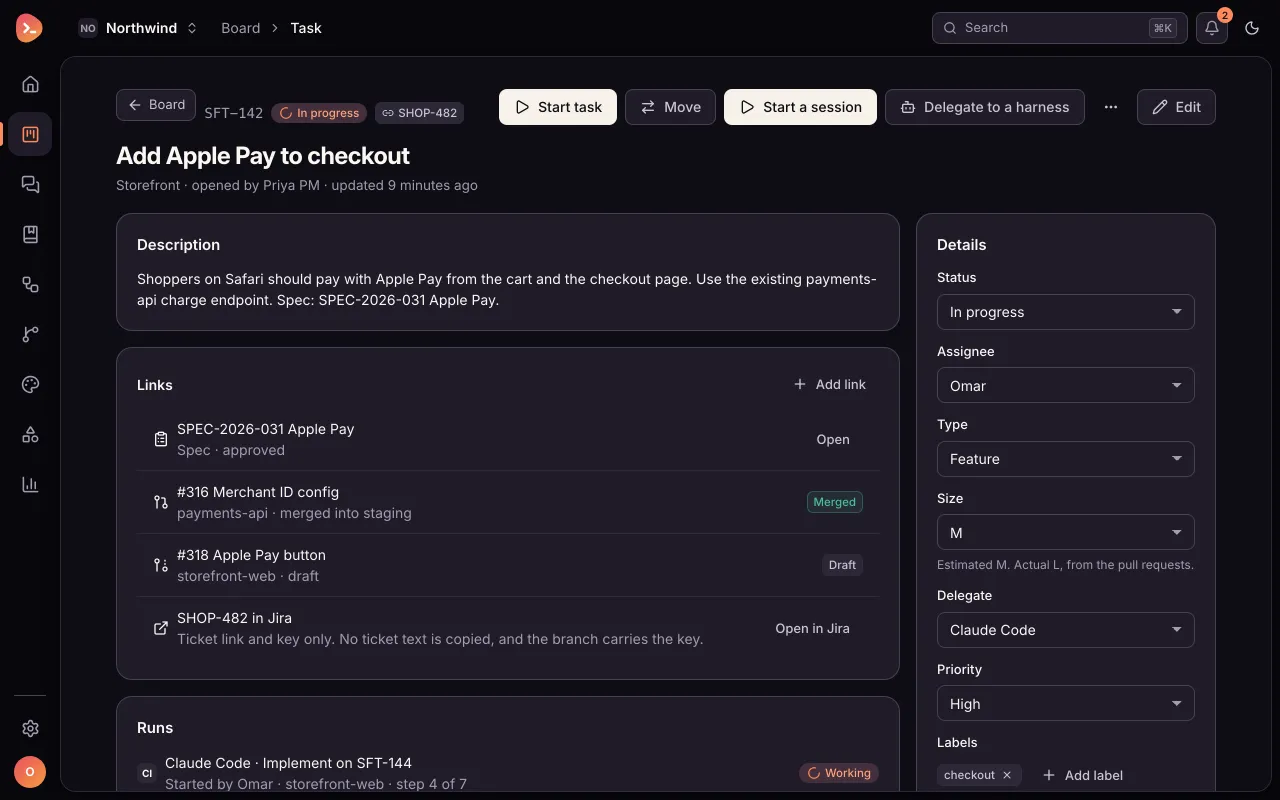
The new task shows the ticket's link and key. His harness reads the ticket itself, through its own Jira connection. 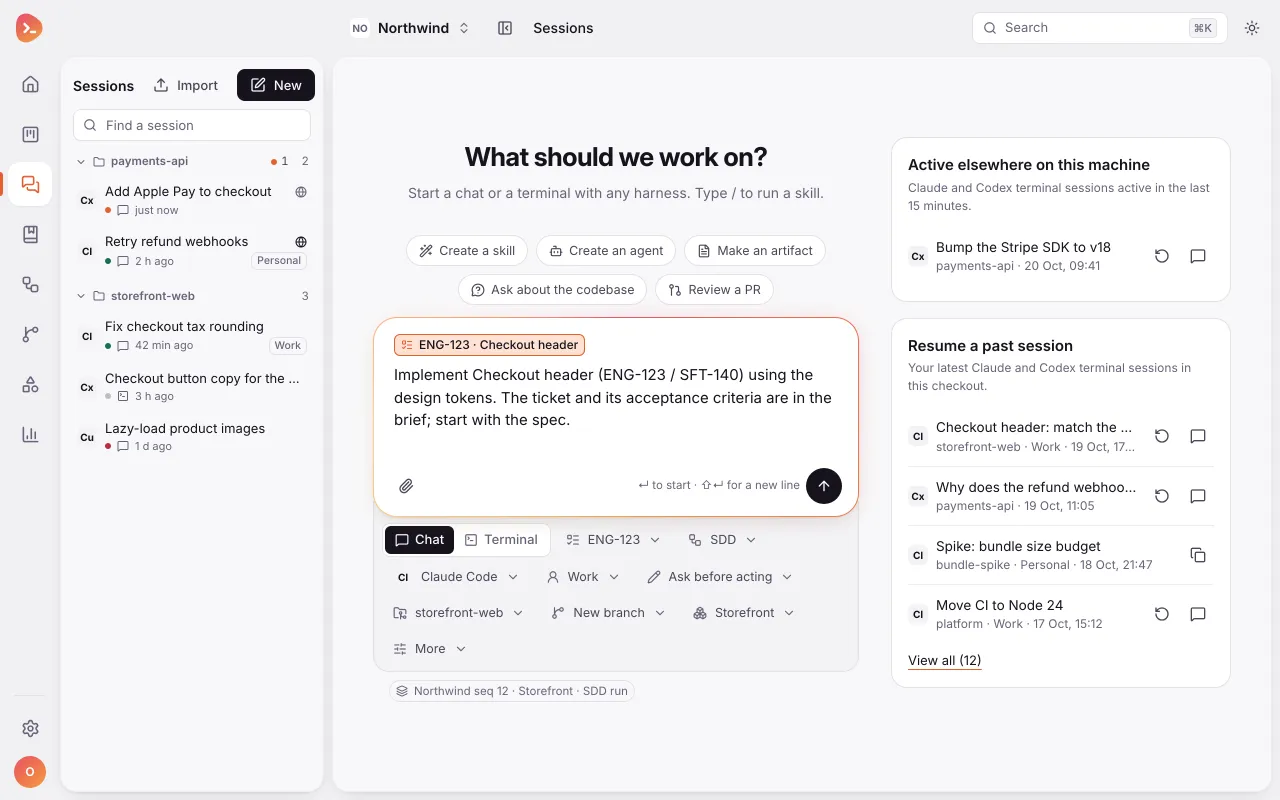
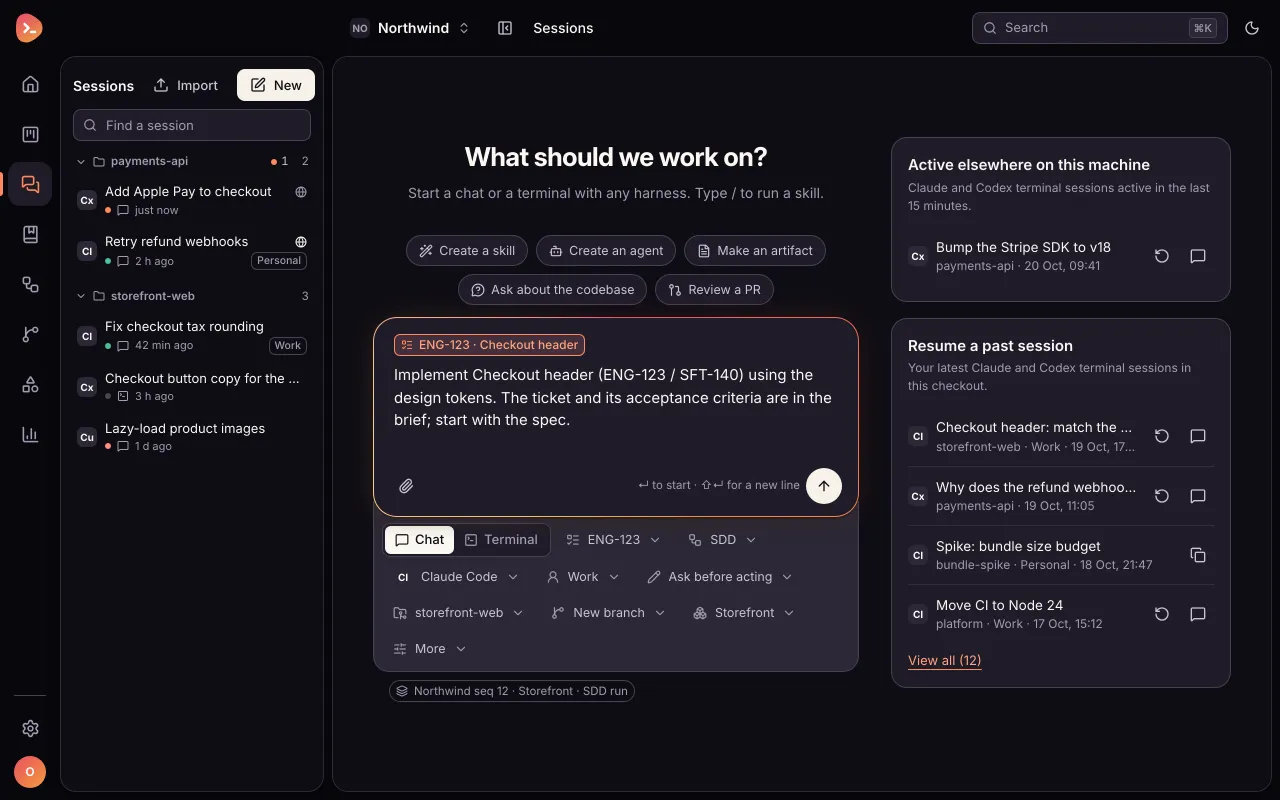
Choose the SDD workflow for the task. 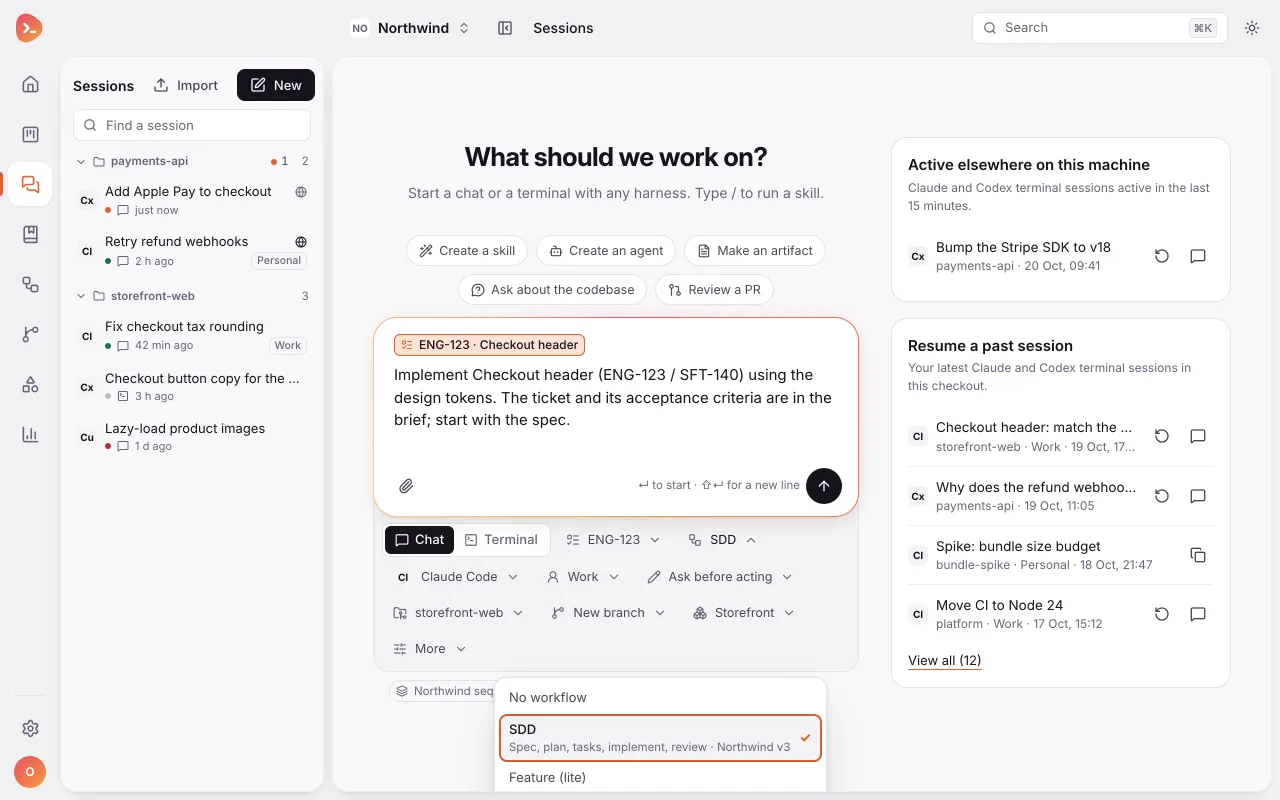
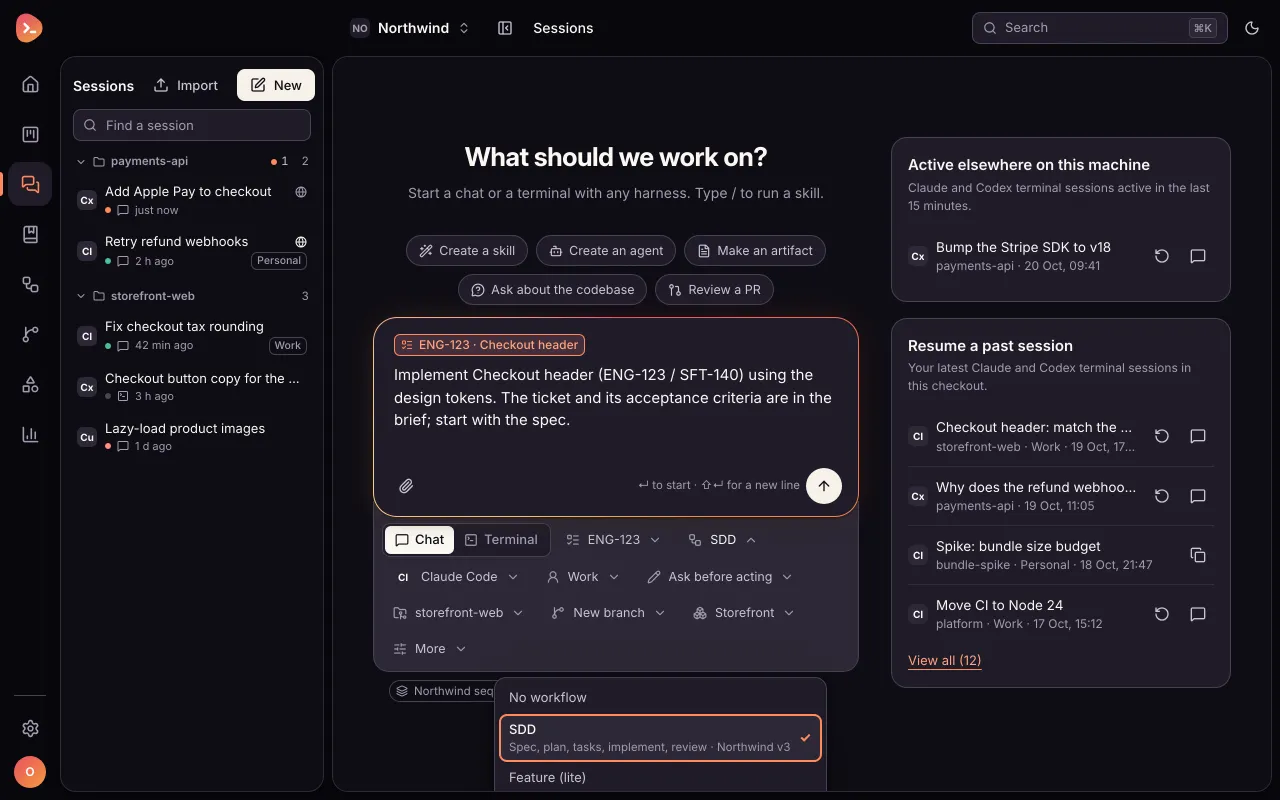
The selected SDD workflow is visible. Open the branch/worktree choice. 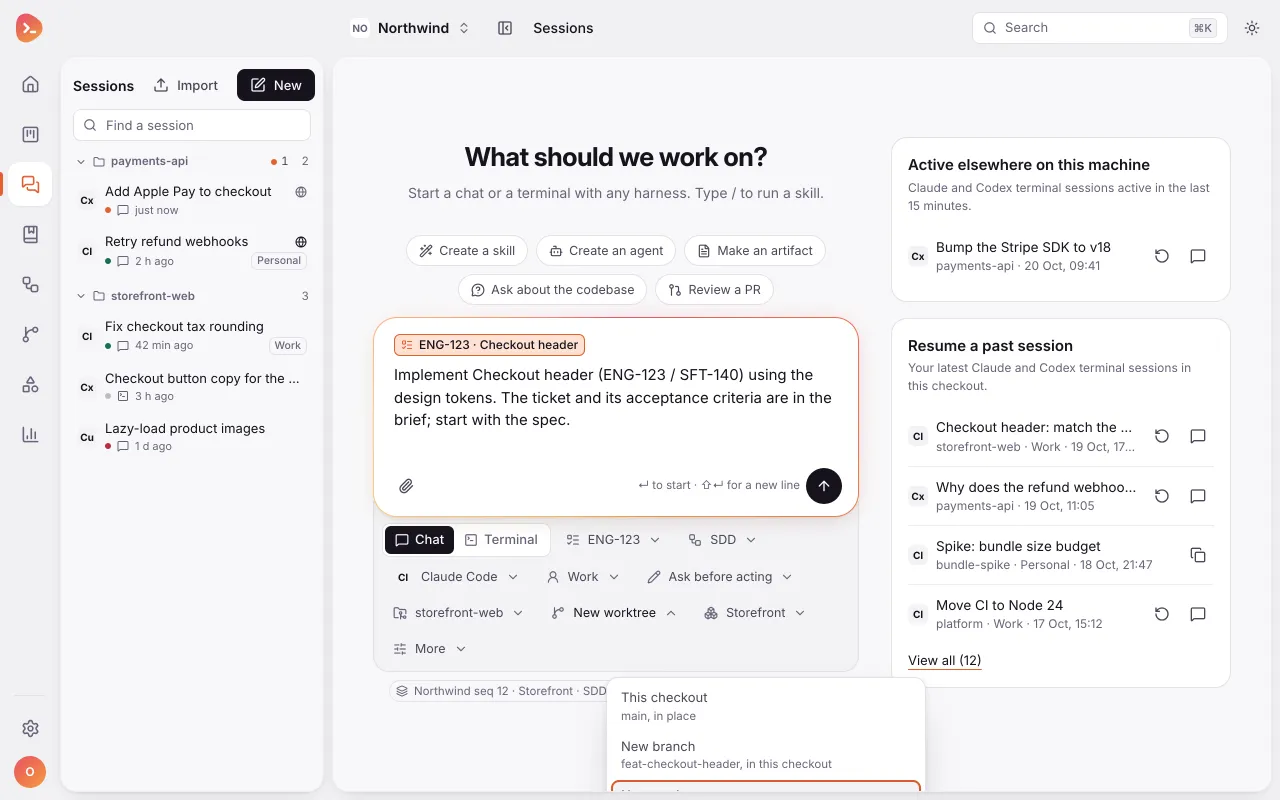
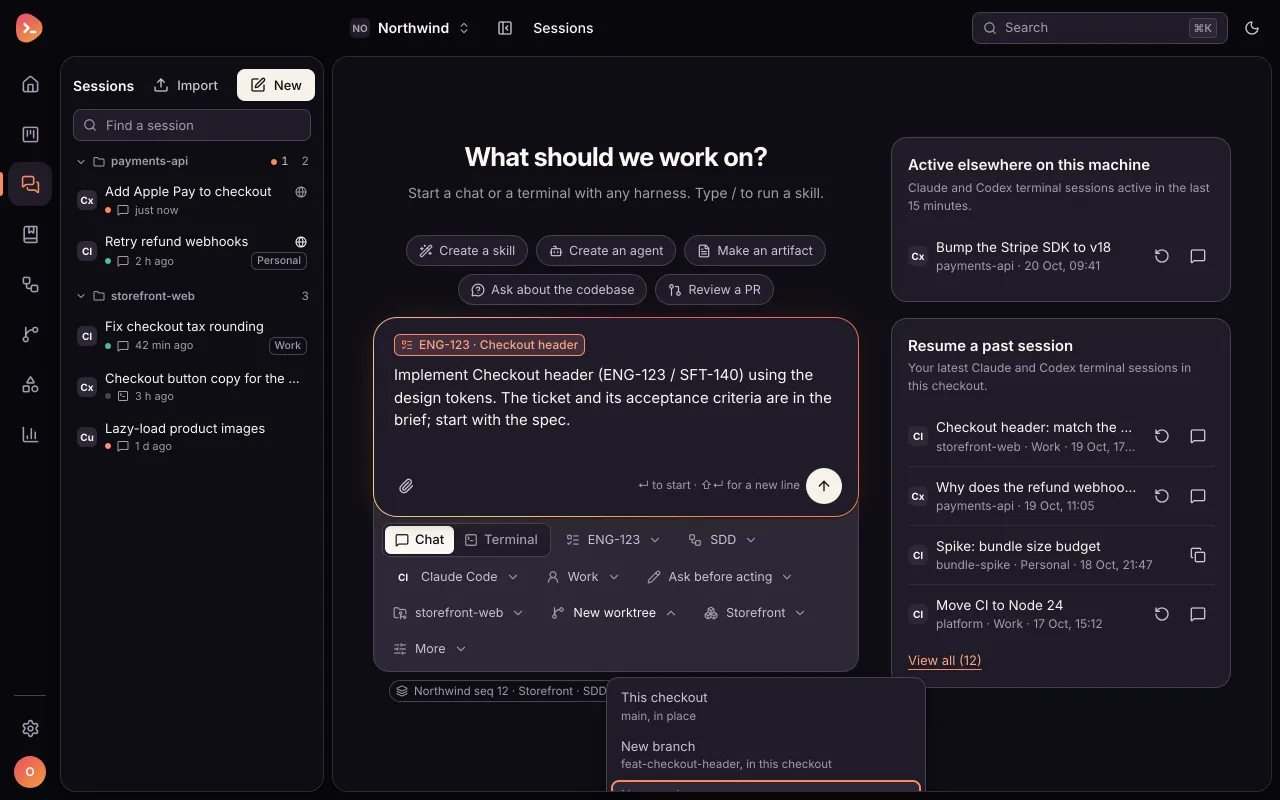
New worktree is already selected; start Checkout header in that worktree.
What you just saw
- Find on this machine looks for clones of your org's repos in the desktop app. Nothing is linked until you confirm the matches.
- A task from a ticket keeps only the ticket's link and key, never its text. The branch carries the key, and your harness reads the ticket through its own connection.
- A session on a task can follow a workflow, and can work in its own copy of the repo (a git worktree), so it never overwrites edits you are making in your checkout.
Next steps: Start a session covers harnesses, modes and context, Workflows, gates and the board explains tasks and gates, and From idea to merged PR follows the work through review to the merge.
Something wrong or missing? Suggest a change
Set up your org
A step-by-step walkthrough of setting up an org: accept the owner invitation, sign in with an email link and invite an admin.
Test a staging link in the built-in browser
A step-by-step walkthrough of testing a staging link in the desktop app's browser: annotate, record and make a bug report.