
Walkthroughs
Test a staging link in the built-in browser
A step-by-step walkthrough of testing a staging link in the desktop app's browser: annotate, record and make a bug report.
Last updated November 15, 2026View as Markdown
Desktop app only
The built-in browser is part of the desktop app.
You don't need a repo or a local app to test with EasyCode. In this walkthrough, Quinn, a QA tester, opens a staging link, marks a wrong total on the page, records the way to it and turns it into a bug report on the task she is testing.
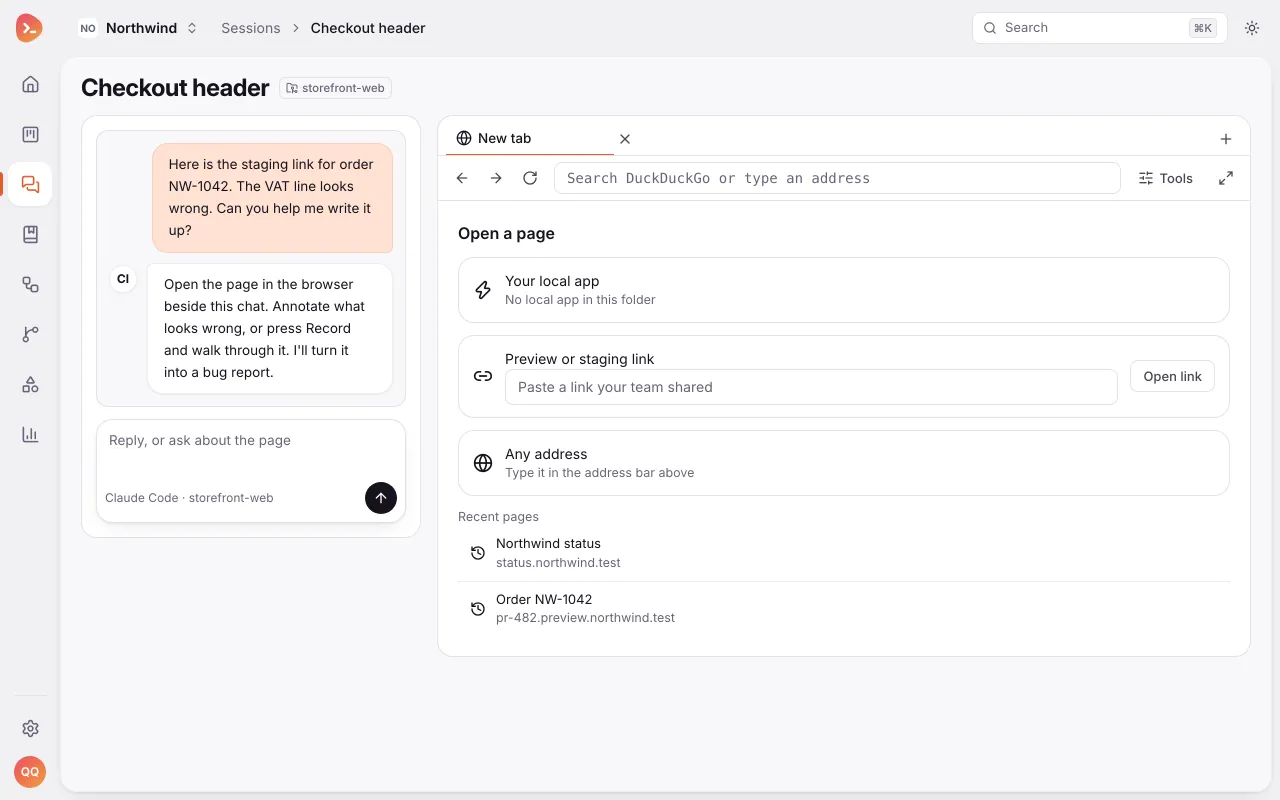
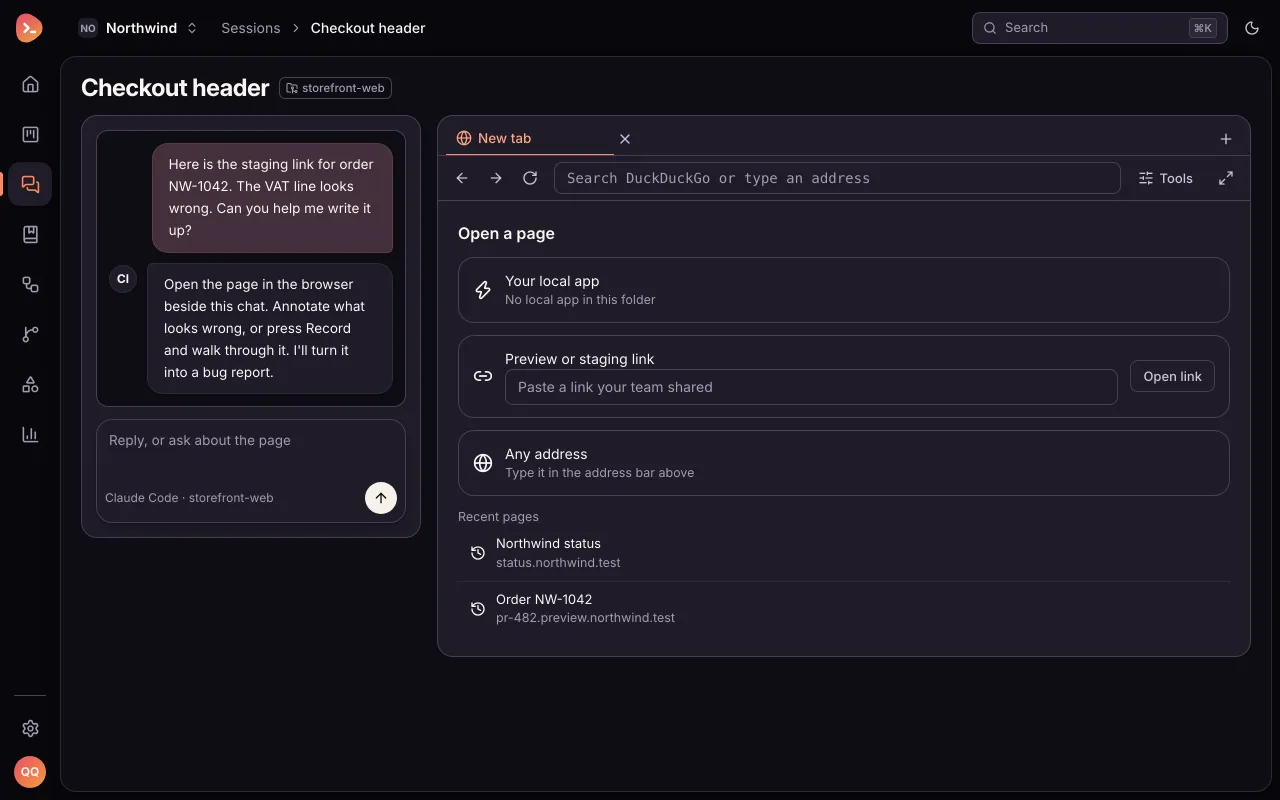
Quinn tests a staging link. She has no repo and no local app, so the browser says so and offers a preview or staging link. 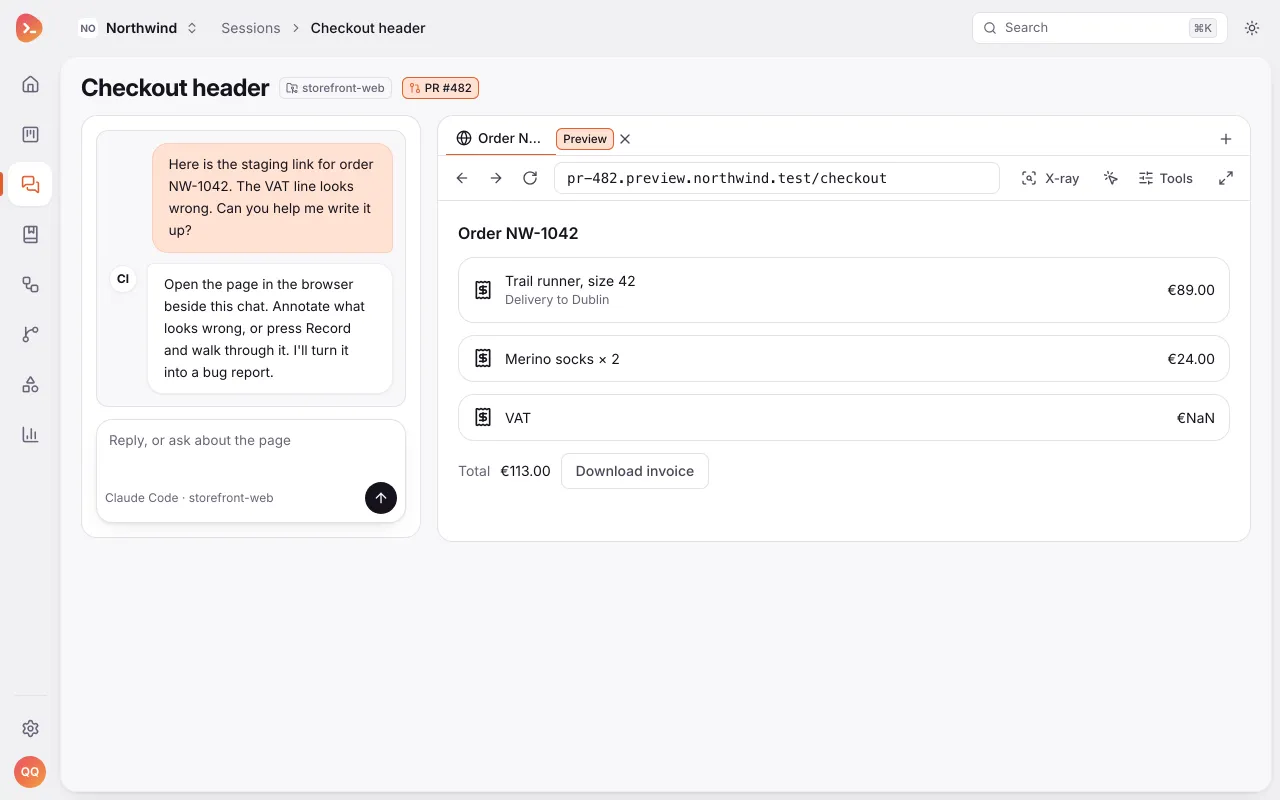
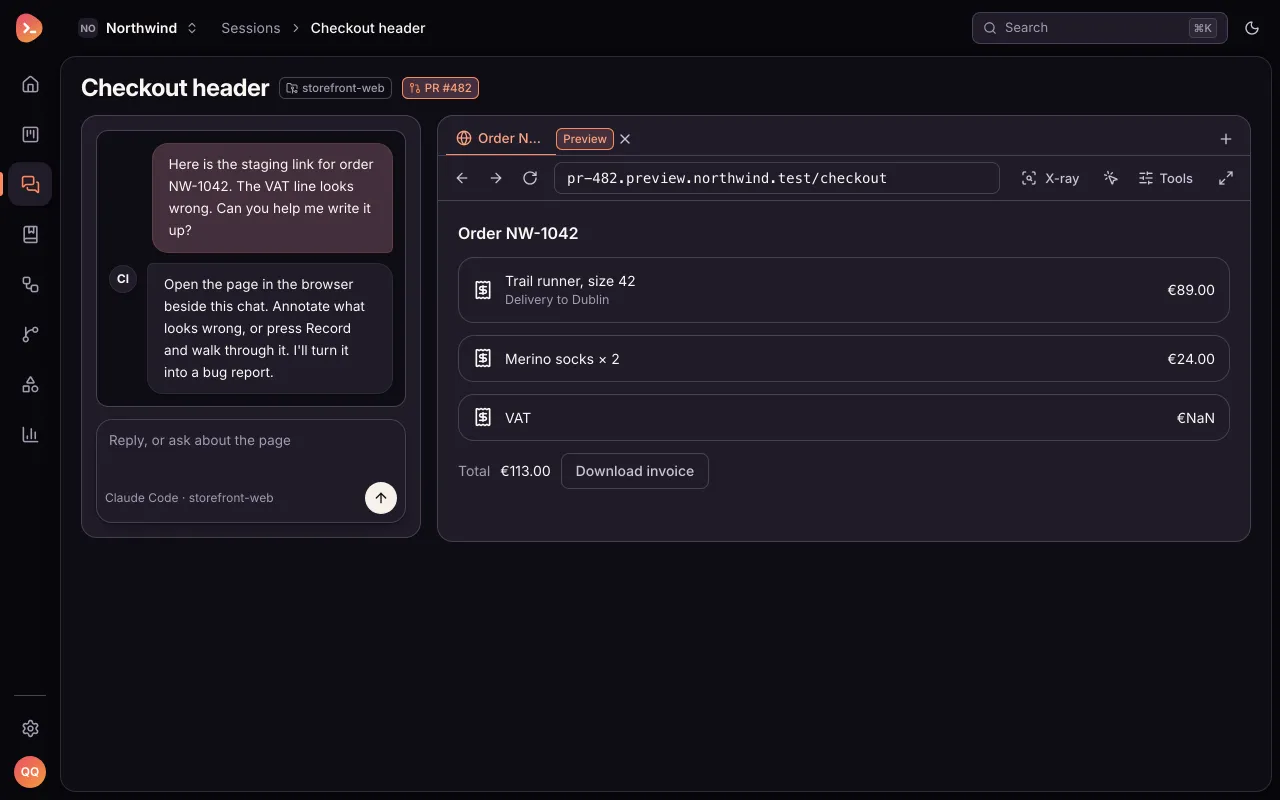
The staging page opens in a tab marked Preview. VAT shows €NaN. She presses Annotate. 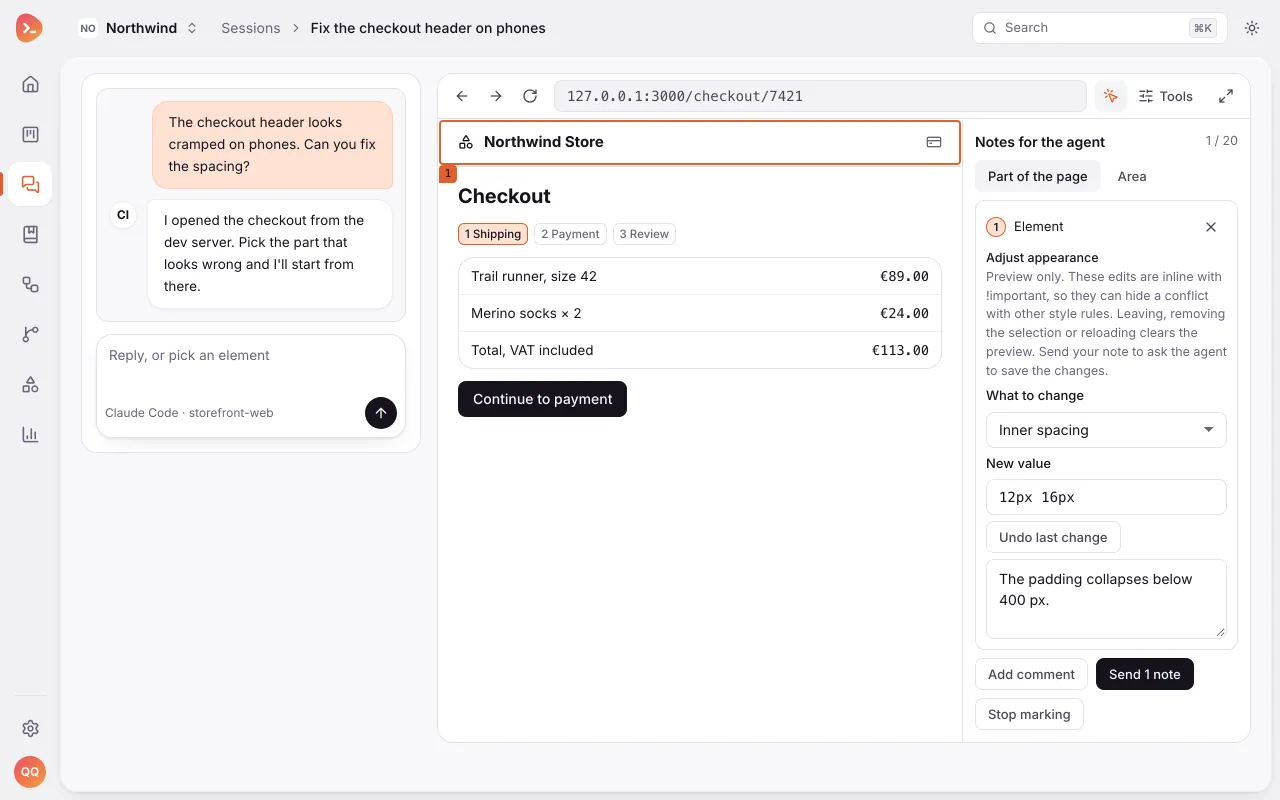
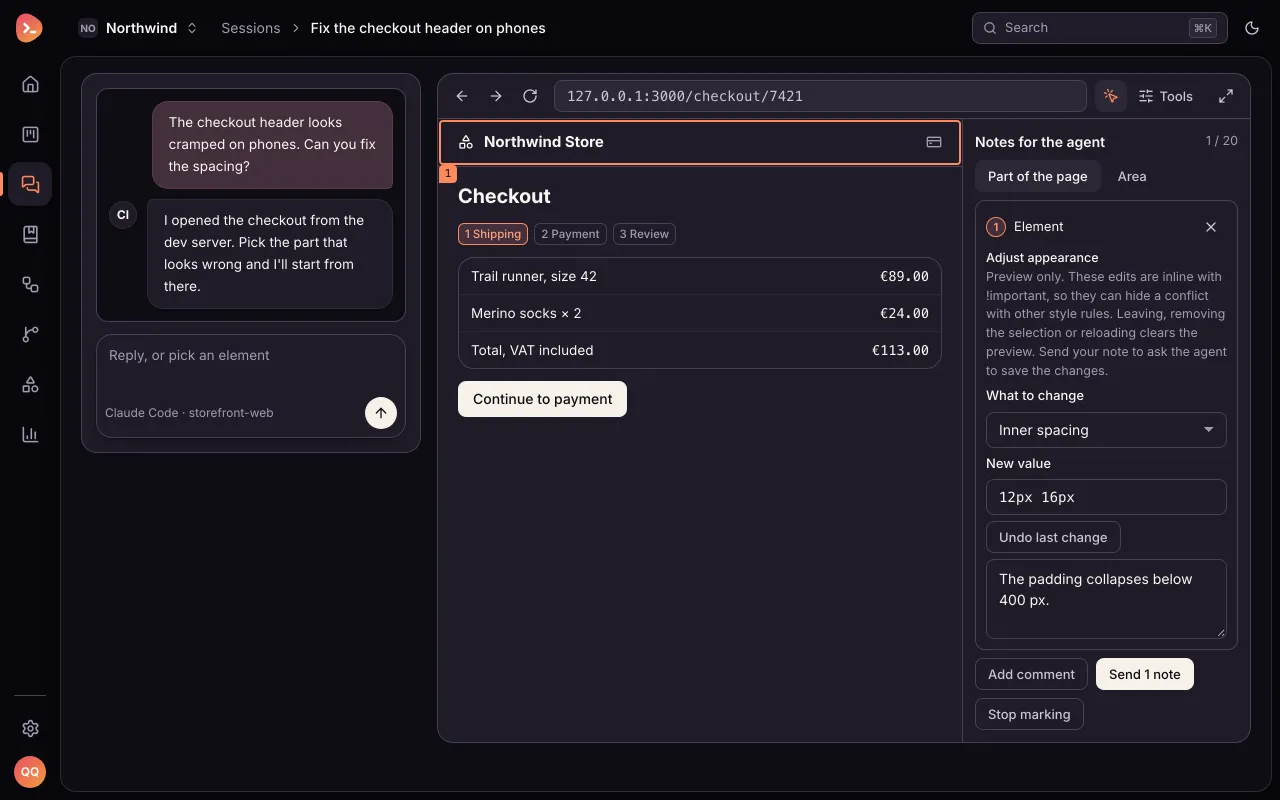
She clicks the VAT line and writes what is wrong in her own words. Its technical name stays behind a link. 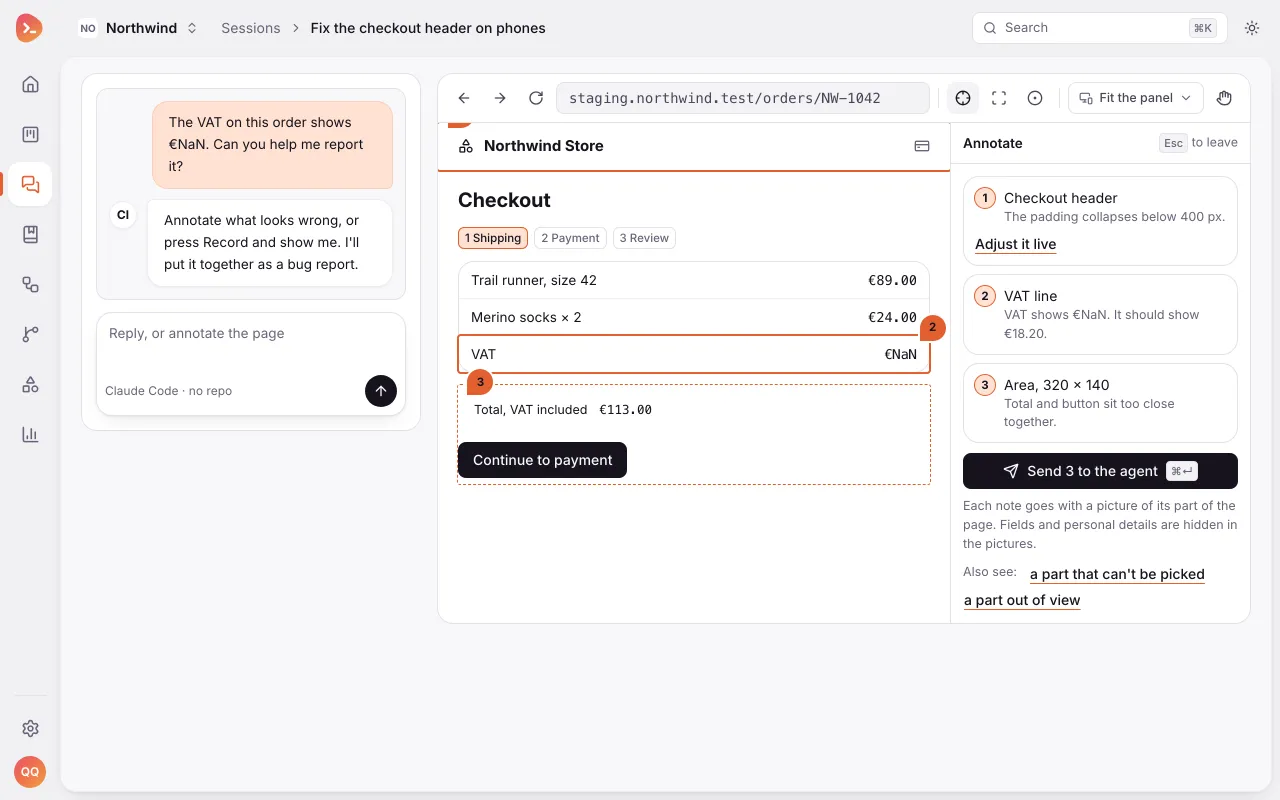
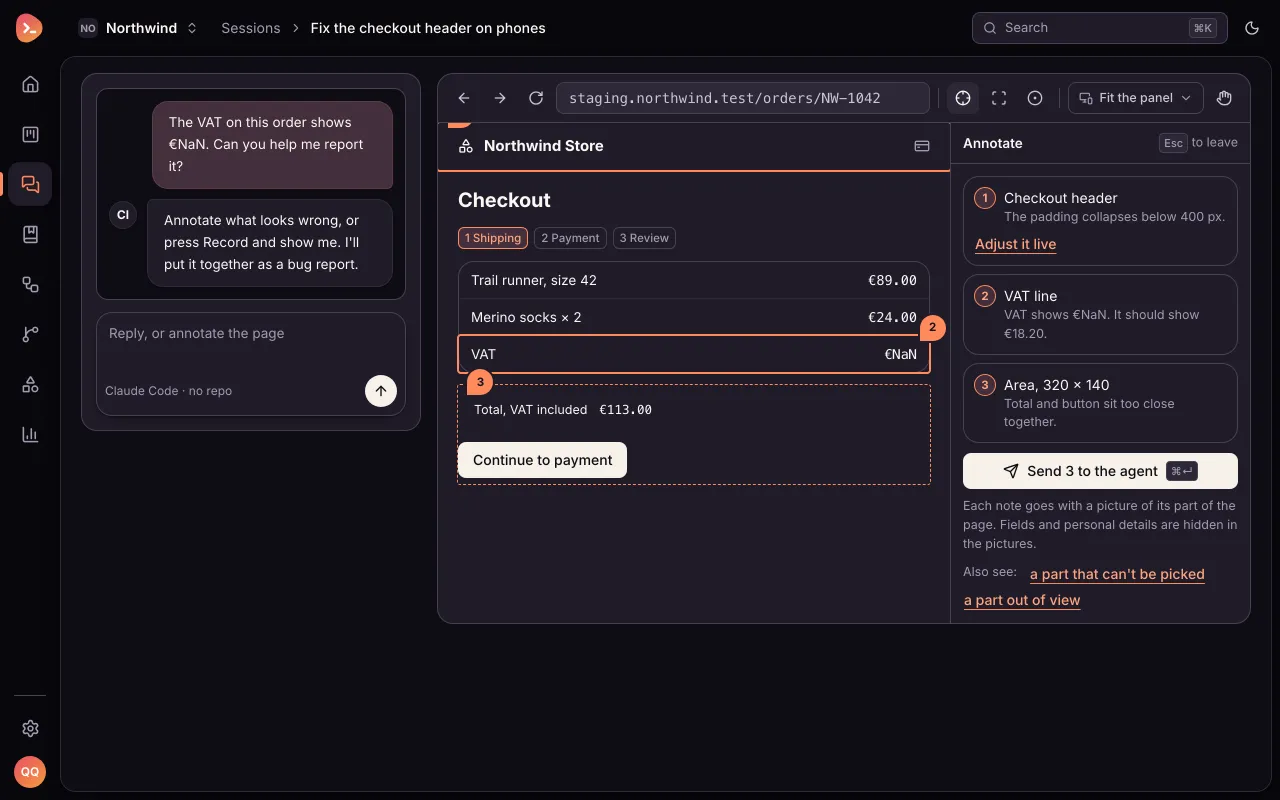
Her note is numbered on the page. Nothing is sent. Now she records, to show the way to the problem. 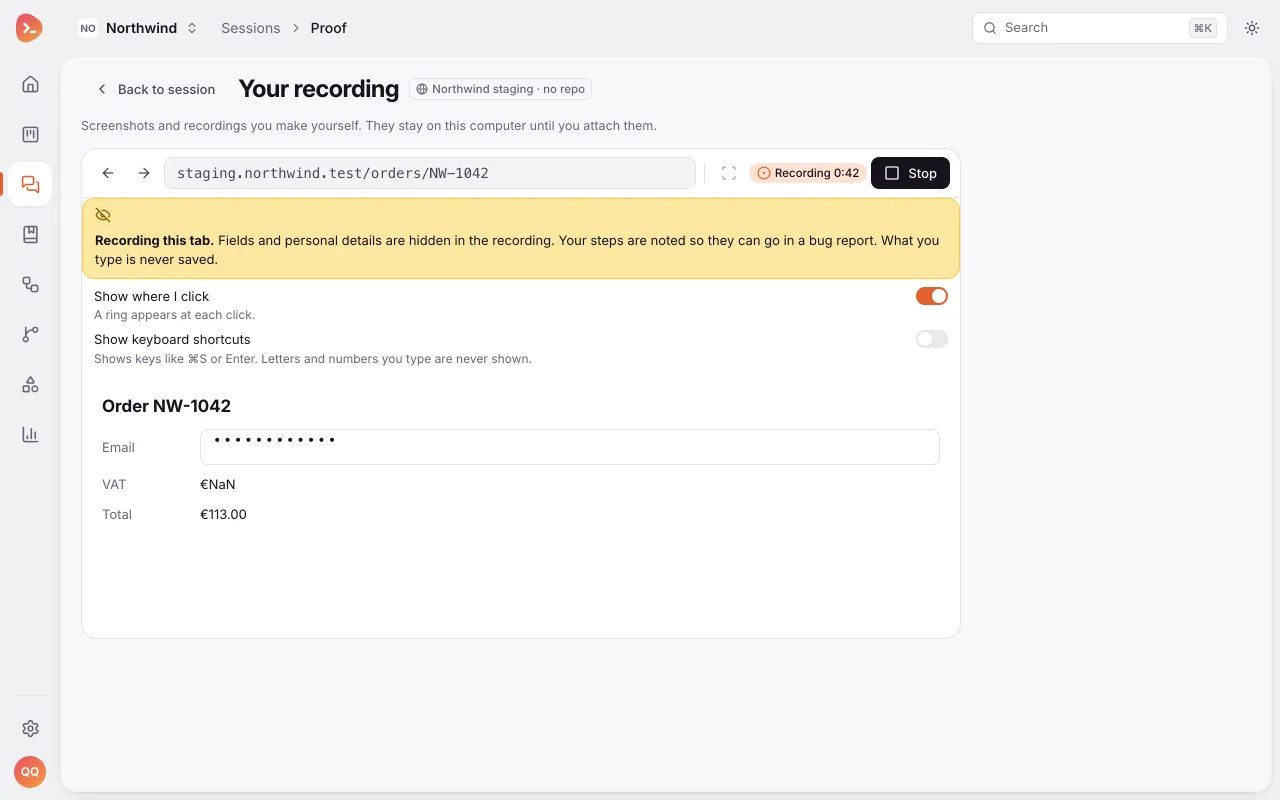
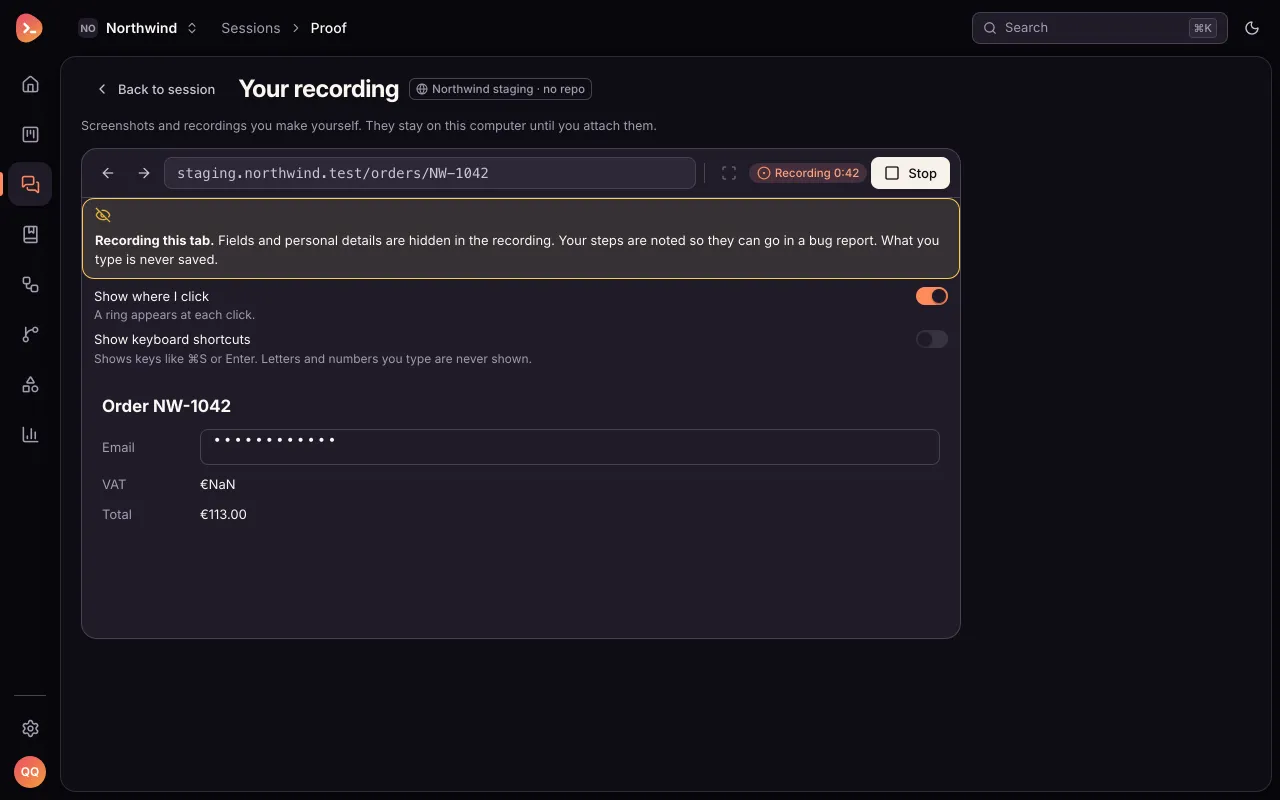
A notice says fields and personal details are hidden in the recording, and she chose to show clicks. She walks through the order, then Stop. 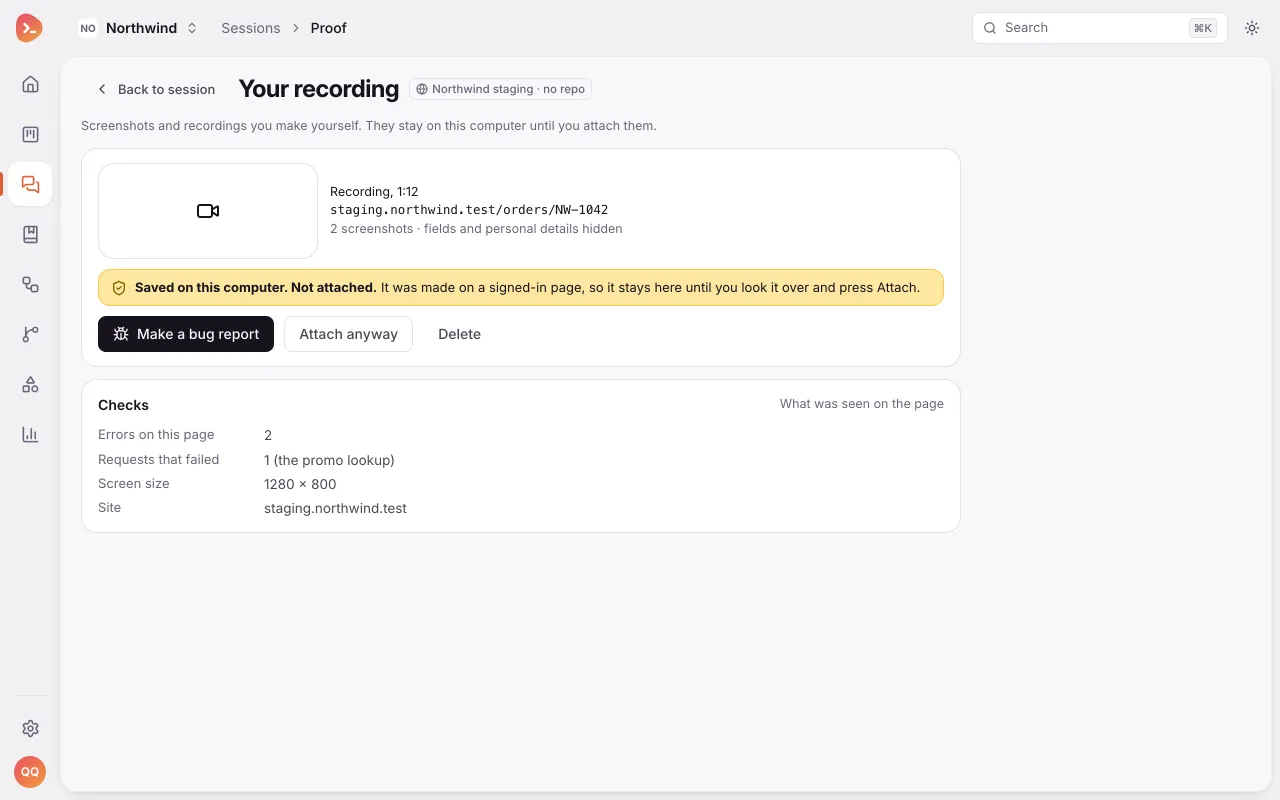
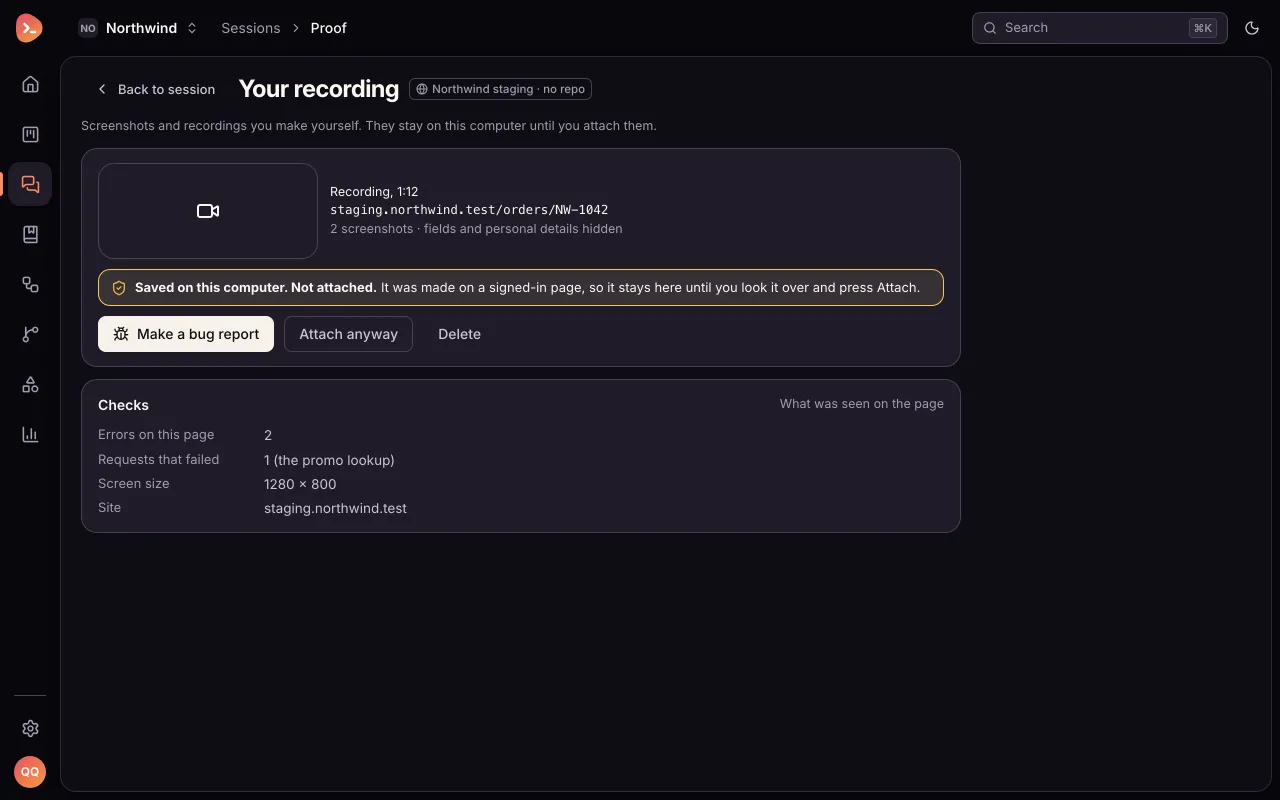
The recording is saved on this computer, not attached. The checks show 2 errors on the page and 1 failed request. She makes a bug report. 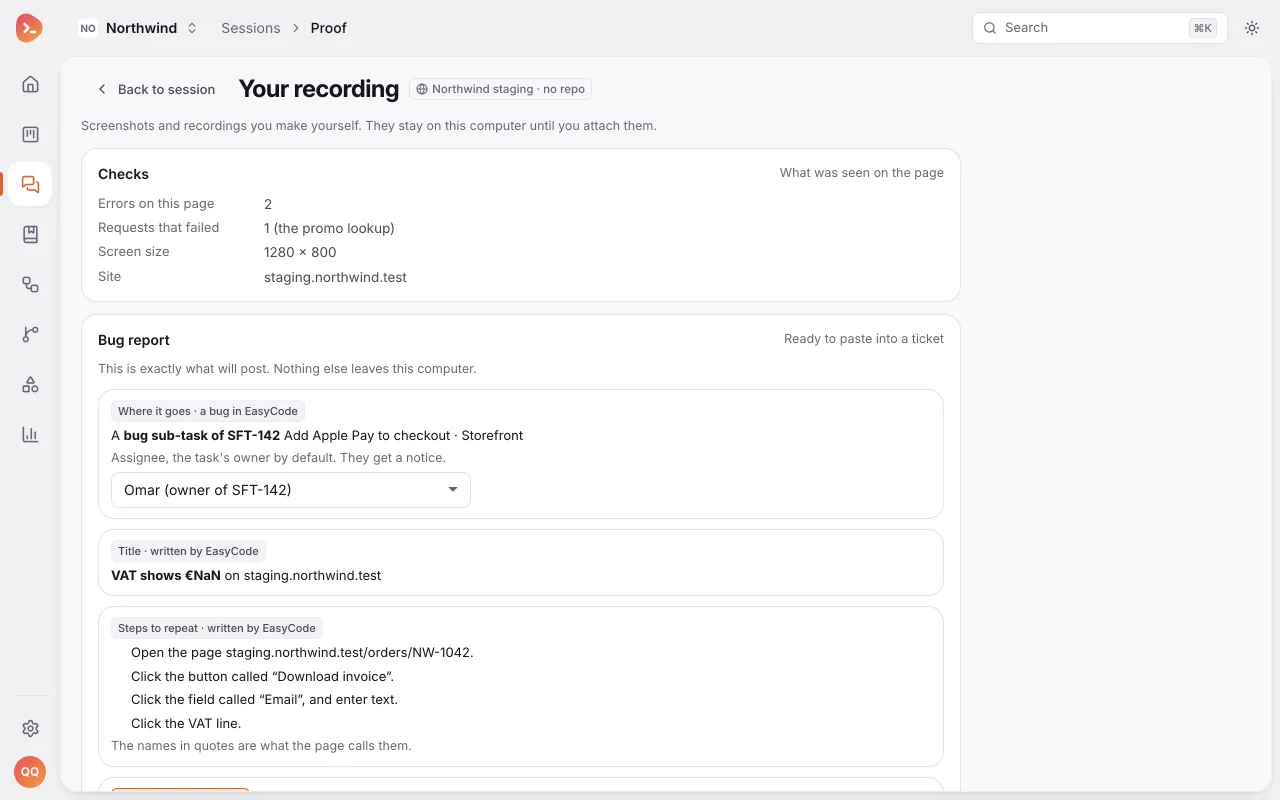
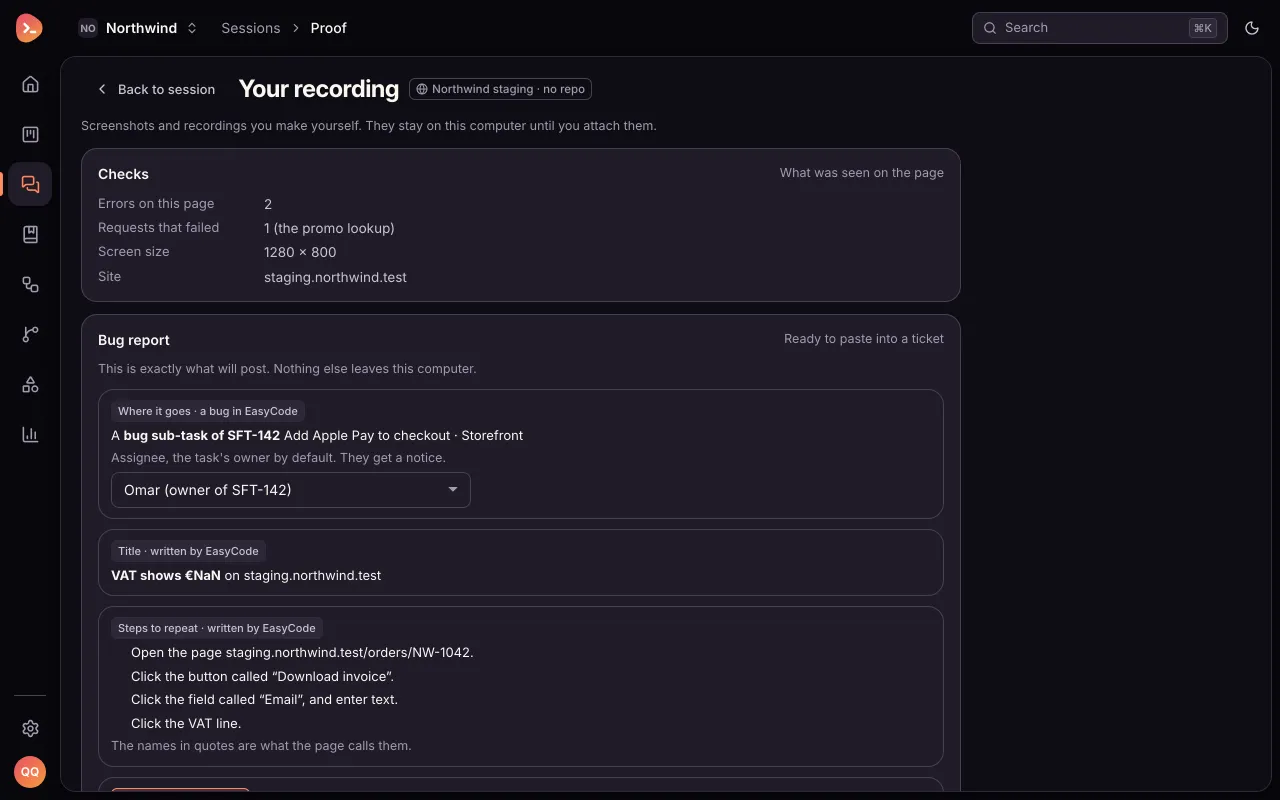
Title, steps in plain words, her notes, the errors and the screen size, each part marked with whose words it is. Copy report is for a ticket; Send to agent adds it to her message. It is opened from SFT-142, so Create bug makes a sub-task of it, assigned to the task's owner. This is exactly what will post.
What you just saw
- Preview or staging link opens a link your team shared in a new tab.
- Pick an element puts a numbered note on the part of the page that is wrong. Nothing is sent until you send it.
- Record this page hides fields and personal details while it records. A recording made on a signed-in page is held on this computer until you look it over and attach it.
- Report a bug, on a recording, puts together the steps, your notes, the page's errors and the screen size. Copy report is for a ticket, Send to agent adds it to your message, and Create bug files it on the task you are testing.
Next steps: Test in the built-in browser covers every tool in the browser, and From acceptance criteria to QA sign-off follows a whole test pass.
Something wrong or missing? Suggest a change